Configure Cloud Search Service Slack Notifications
T Cloud Public provides Cloud Search Service (CSS), a fully managed OpenSearch offering used widely for log analytics, observability, and security monitoring.
A very common requirement is to send alerts and notifications to Slack when certain conditions are met, such as:
- Error rate spikes
- Cluster health degradation
- Security or audit events
However, there is an important architectural constraint: Cloud Search Service (CSS) does not have direct outbound internet access.
Because Slack webhooks are hosted on the public internet, OpenSearch cannot directly call Slack endpoints. To solve this, we introduce an internal relay component (reverse proxy or webhook service) deployed inside the same VPC.
This guide explains a clean, production-ready approach to integrate OpenSearch notifications with Slack in T Cloud Public.
Solution Overview

OpenSearch communicates exclusively within the VPC, so it is not directly exposed to external networks. Secure outbound HTTPS traffic is handled by the proxy and as a result, OpenSearch itself remains inaccessible from the public internet.
Prerequisites
For this guide, we are going to need:
- a VPC where our artefacts are going to be deployed
- an T Cloud Public Cloud Search Service (CSS) cluster
- an ECS VM or CCE cluster in the same VPC with the Cloud Search Service (CSS) cluster
- Network access between Cloud Search Service (CSS) cluster and proxy
- Slack workspace admin or app permissions
Creating a Slack Incoming Webhook
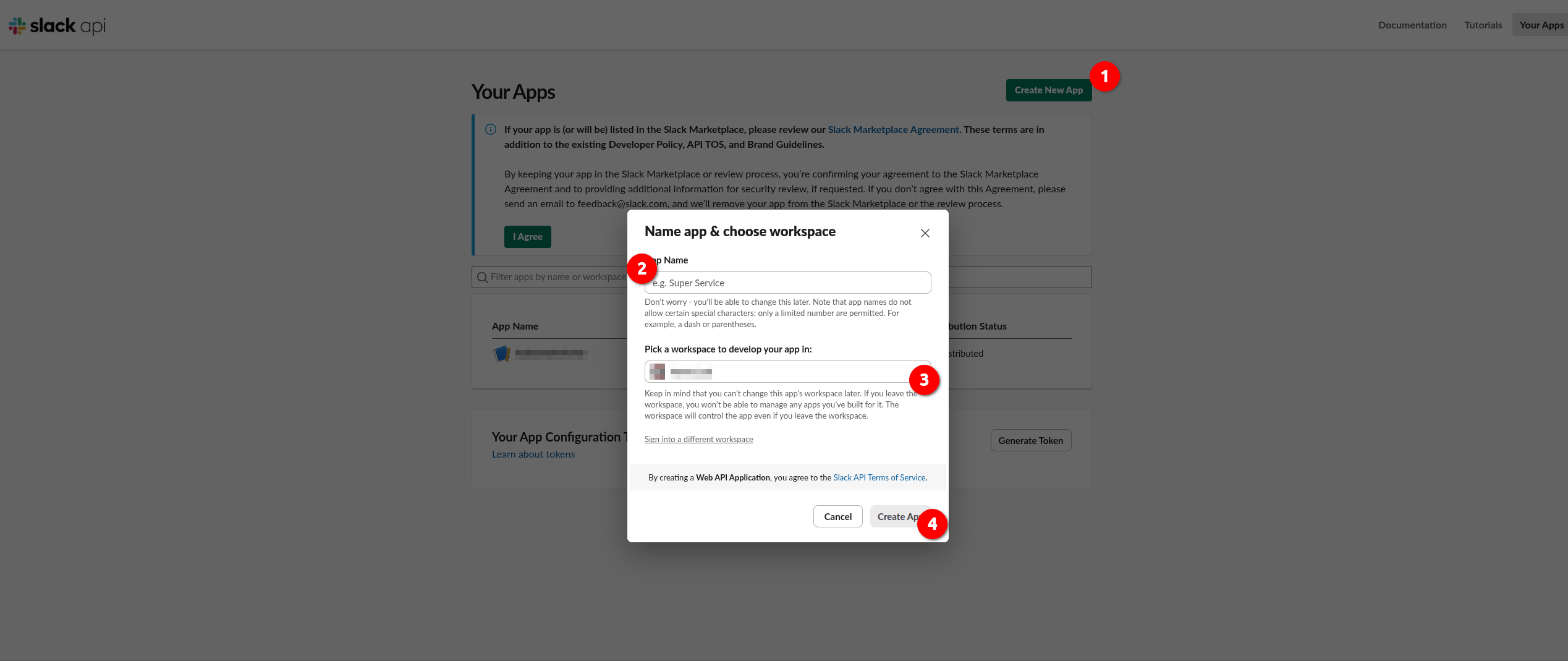
Navigate to https://api.slack.com/apps and click Create New App -> From scratch. Fill in the App Name and pick the workspace you will develop your app in and click Create App
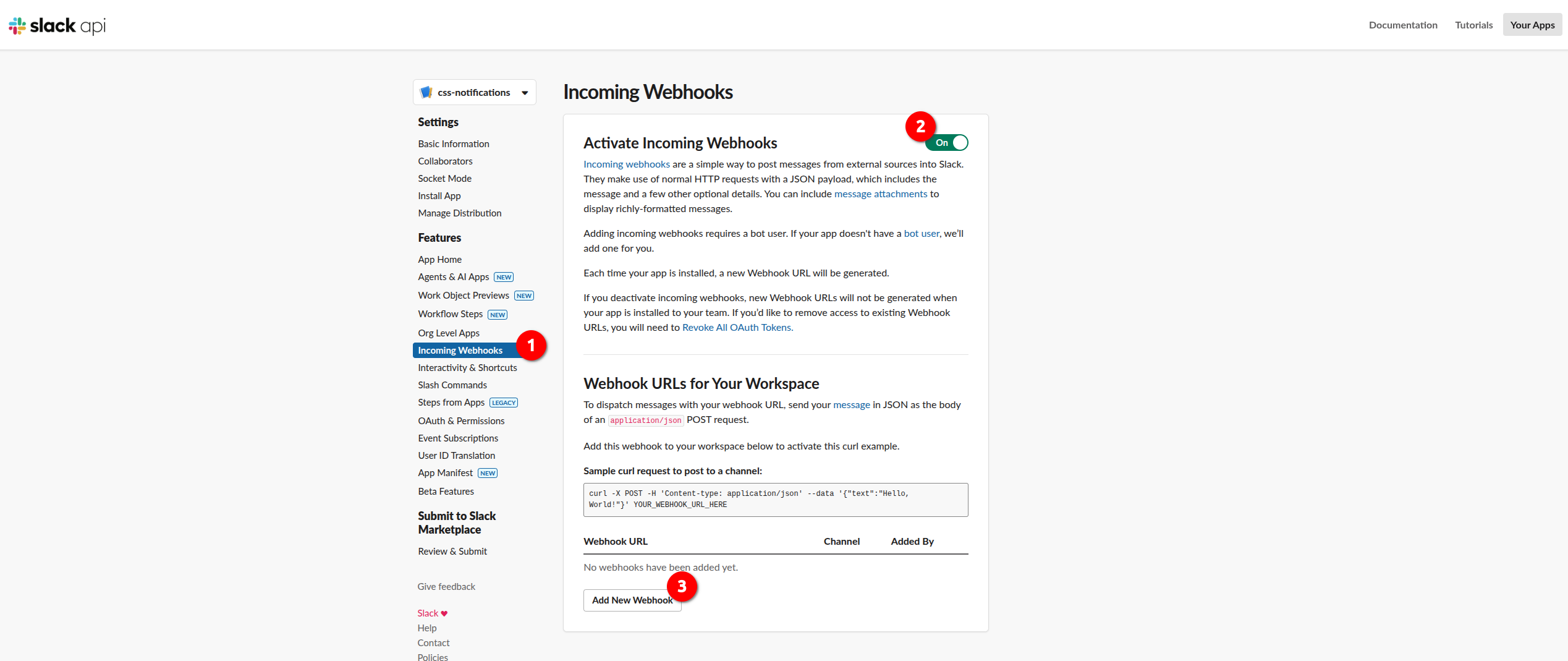
You will be redirected to the Settings page of your App. Click Incoming Webhooks in the sidebar navigation and then enable Activate Incoming Webhooks. Now that incoming webhooks are enabled, more options will appear. One of those is Add New Webhook button. Click it to continue.
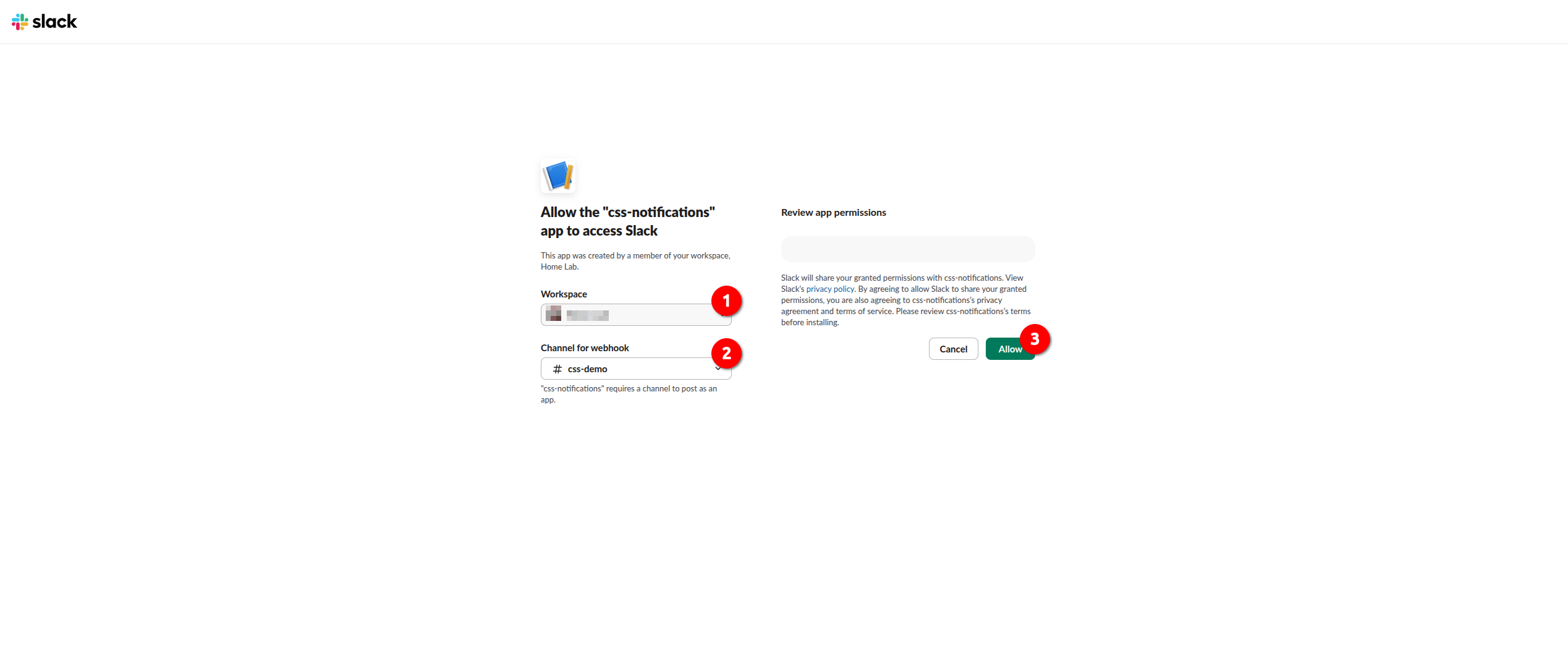
Choose the workspace and the channel and click Allow
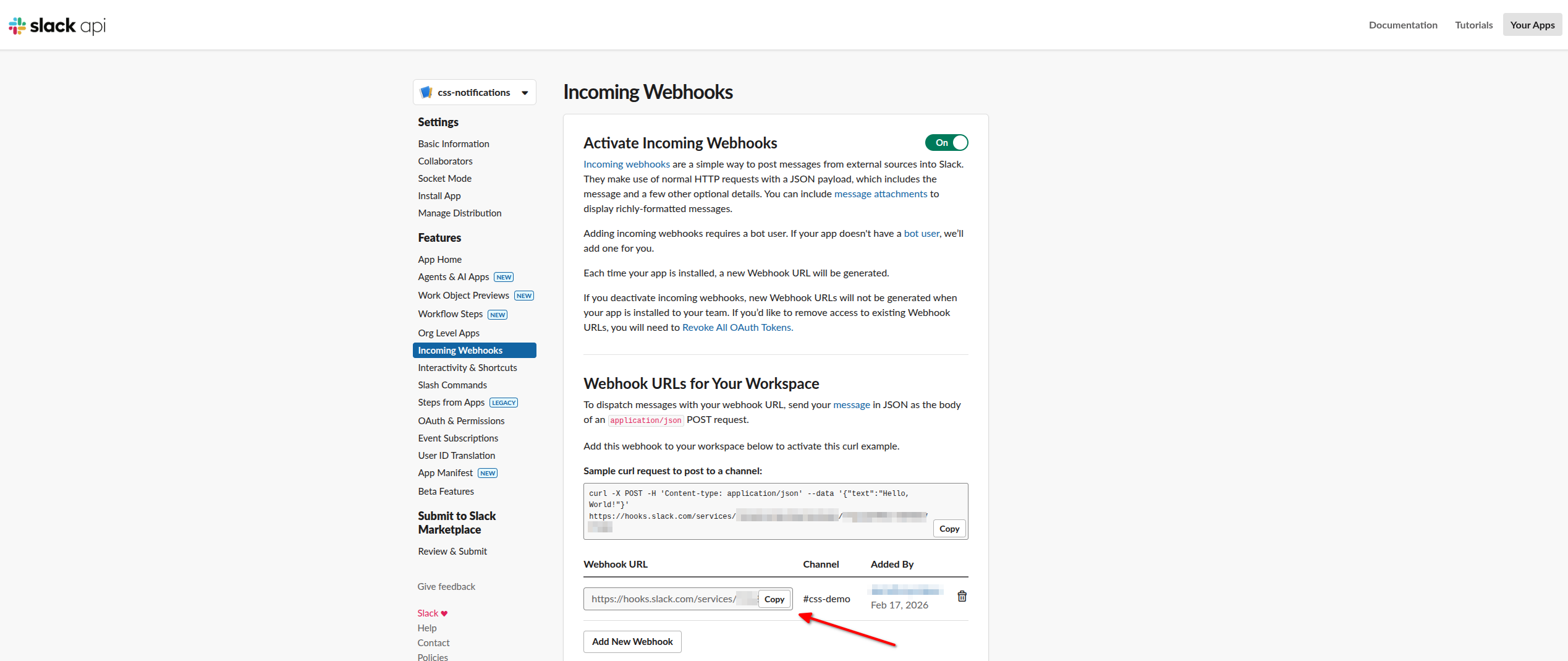
Copy the webhook URL that appeared in the Incoming Webhooks page:
The Webhook URL will have the following format:
➡️ https://hooks.slack.com/services/<TEAM_ID>/<APP_ID>/<WEBHOOK_TOKEN>
For more information on sending Slack messages using incoming webhooks, consult the official documentation.
This URL must not be exposed publicly. Keep it restricted to trusted systems and store it securely to prevent unauthorized access.
Enabling Slack Notifications in CSS
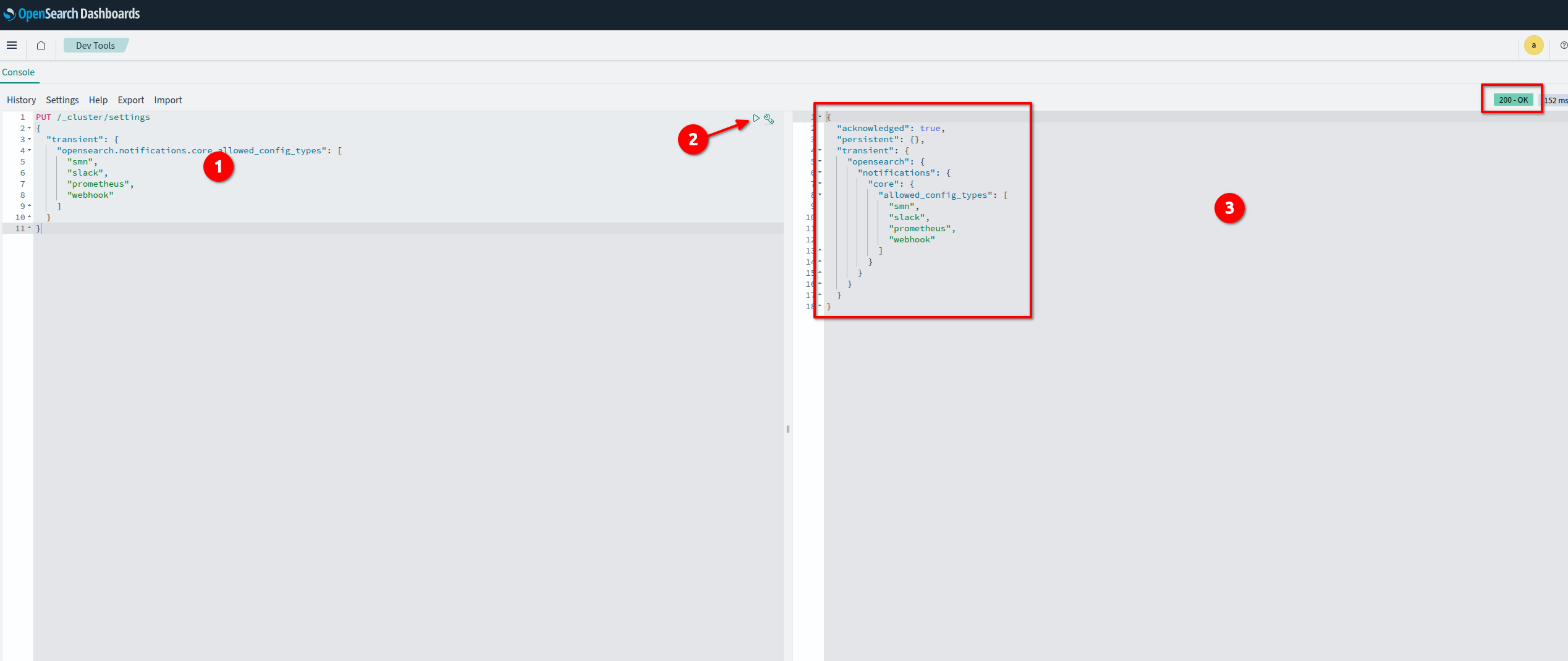
Log in to the T Cloud Public Console -> Cloud Search Service -> Clusters -> OpenSearch pick your cluster and then go to Dashboards. Click Dev tools, paste the snippet below to the console and click Send request. This will enable Slack and webhook-based notification channels.
PUT /_cluster/settings
{
  "transient": {
    "opensearch.notifications.core.allowed_config_types": [
      "smn",
      "slack",
      "prometheus",
      "webhook"
    ]
  }
}
Deploying a Reverse Proxy
You can deploy the proxy in several ways, for example on an ECS virtual machine, on CCE, or as a lightweight webhook relay service. This guide describes the setup with NGINX running on an ECS VM.
Installing NGINX on ECS
sudo apt update
sudo apt install -y nginx

sudo systemctl status nginx
Configuring NGINX as a Slack Reverse Proxy
Create a new configuration file under /etc/nginx/conf.d/slack-proxy.conf:
server {
    listen 8080;
        proxy_set_header Host hooks.slack.com;
        proxy_set_header Content-Type application/json;
        proxy_ssl_server_name on;
}

server {
    listen 8080;
    location /slack-webhook {
        # Forward requests to Slack
        proxy_pass https://hooks.slack.com/services/<TEAM_ID>/<APP_ID>/<WEBHOOK_TOKEN>;

        # Mandatory headers for Slack
        proxy_set_header Host hooks.slack.com;
        proxy_set_header X-Real-IP $remote_addr;
        proxy_set_header X-Forwarded-For $proxy_add_x_forwarded_for;
        proxy_set_header X-Forwarded-Proto $scheme;

        # HTTPS settings
        proxy_ssl_server_name on;           # Enable SNI
        proxy_ssl_name hooks.slack.com;     # Explicit SNI name

        # Optional: increase buffer for larger payloads
        client_max_body_size 10M;

        # Timeouts
        proxy_connect_timeout 10s;
        proxy_read_timeout 30s;
        proxy_send_timeout 30s;
    }
}
and reload the service:
sudo nginx -t
sudo systemctl reload nginx
Configuring a Security Group
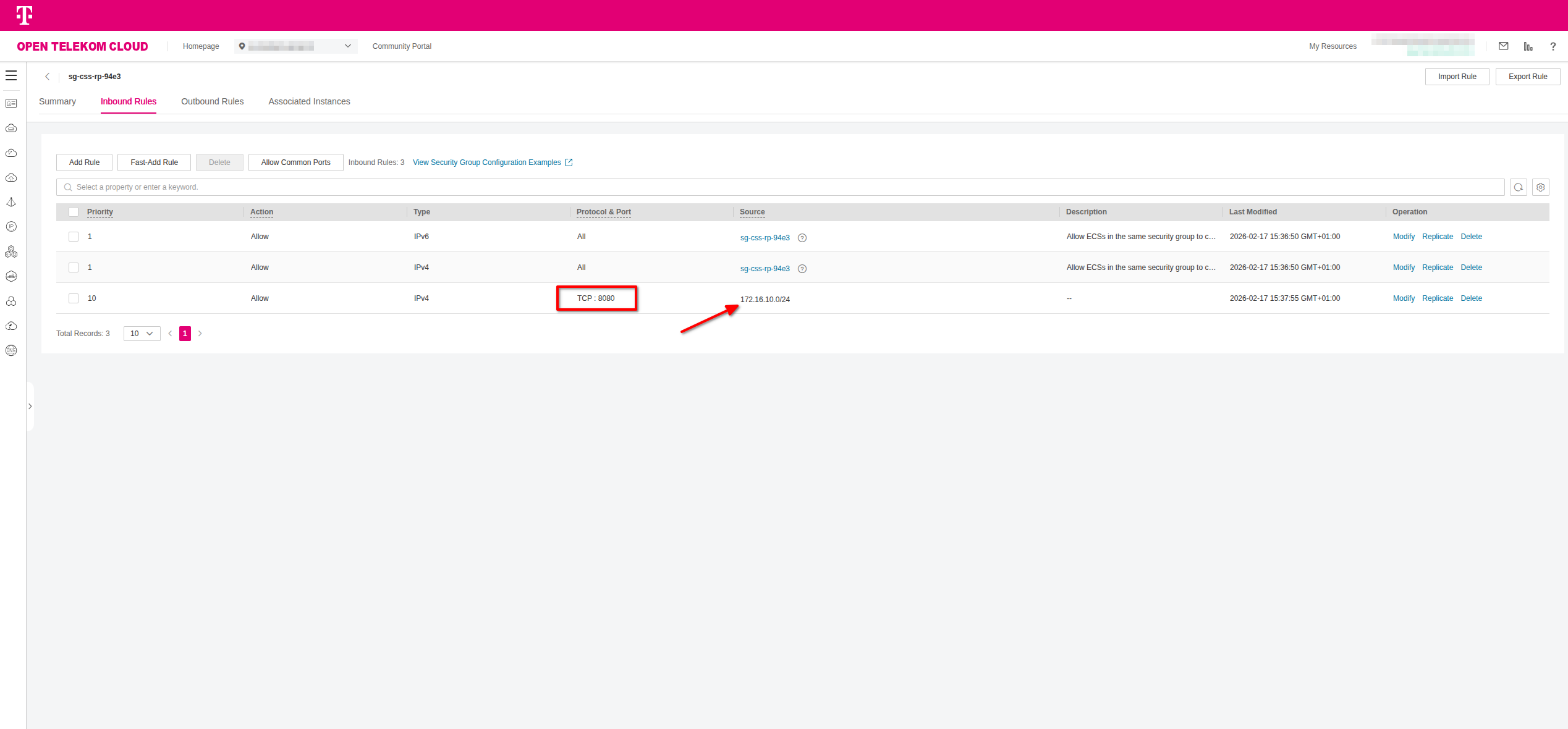
Create a dedicated security group for the proxy instance and configure it to allow inbound traffic on port 8080 from the OpenSearch subnet (or from the specific security group attached to OpenSearch). This ensures that only OpenSearch can reach the proxy endpoint.
OpenSearch itself does not require a public IP address for this setup. All communication between OpenSearch and the proxy should take place over private network addresses within the VPC.
Creating a Notification Channel
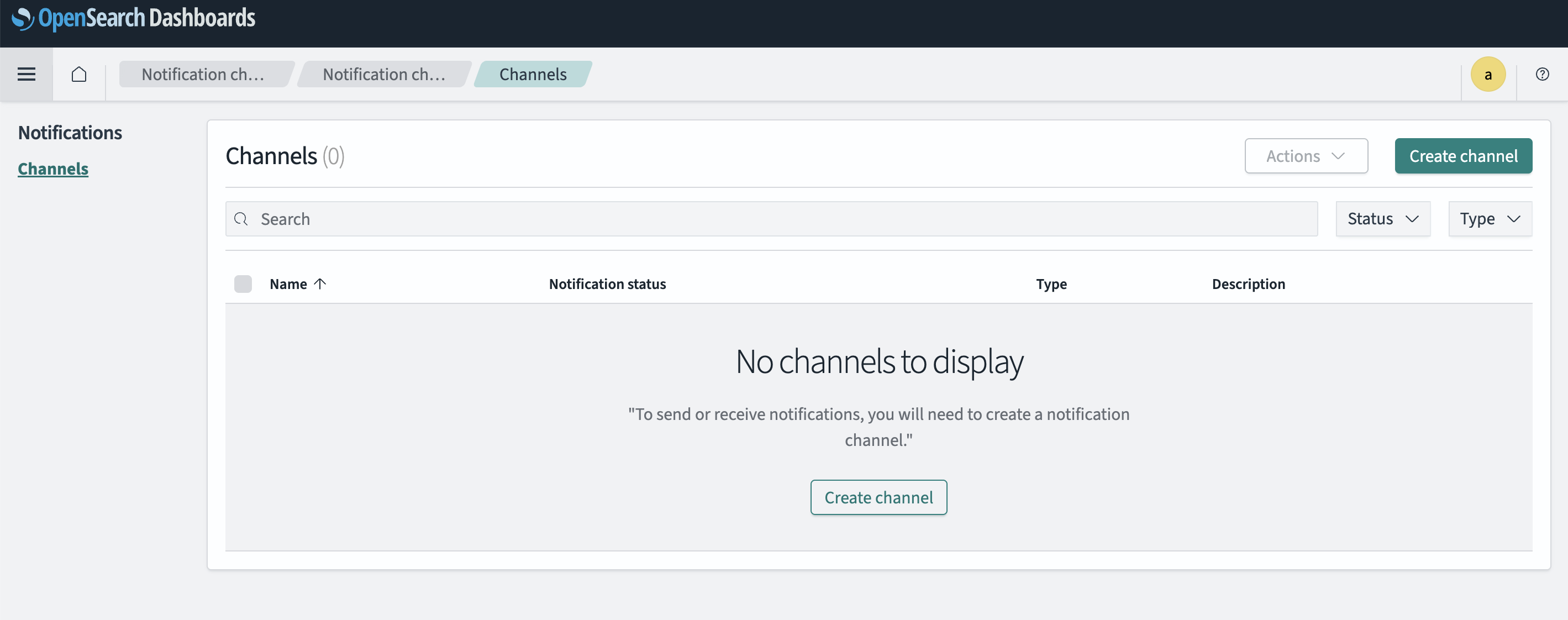
Log in to the T Cloud Public Console -> Cloud Search Service -> Clusters -> OpenSearch pick your cluster and then go to Dashboards. Click Notifications -> Channels in the sidebar menu and then click Create Channel.
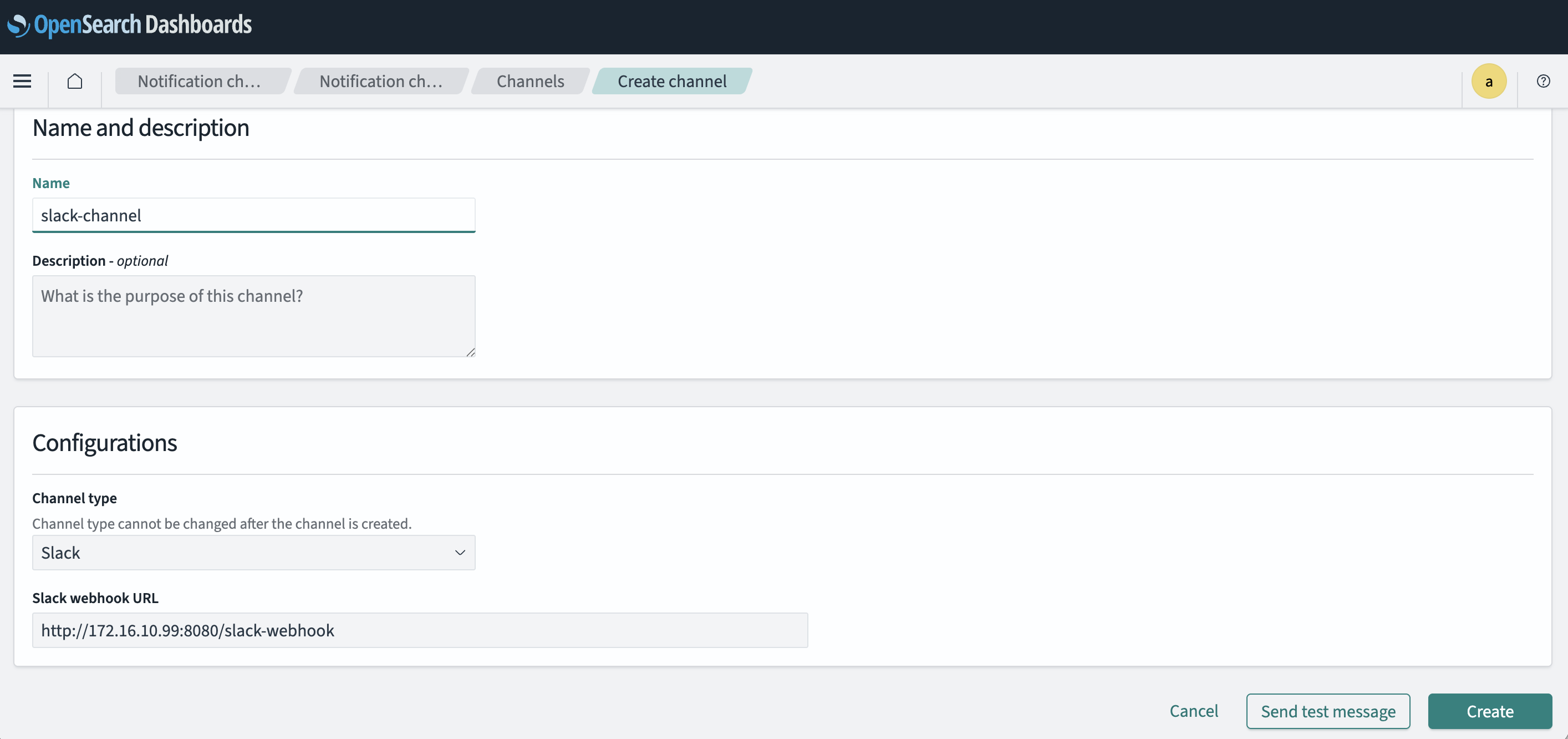
Provide a Channel Name and select Slack as the Channel Type.
In the Slack webhook URL field, enter your reverse proxy server url (for example, http://<proxy-private-ip>:8080/slack-webhook) that forwards requests to your Slack webhook endpoint.
After filling in the required details, click Create to save the notification channel.
Message Template
{
  "text": "OpenSearch Alert: {{ctx.monitor.name}} triggered"
}
Creating a Monitor and a Trigger
Example:
- Monitor type: Query-level monitor
- Index pattern:
logs-* - Condition: Error count > threshold
Trigger action:
- Action type: Send notification
- Channel:
slack-notifications
Message example:
{
  "text": "*Alert:* {{ctx.monitor.name}}\nTime: {{ctx.periodStart}}"
}
Testing the Integration
- Use Send test message in the channel
- Trigger the monitor manually
- Verify message delivery in Slack
Appendix
Troubleshooting
No messages received
- Check NGINX logs with
sudo tail -f /var/log/nginx/error.log - Validate webhook URL
curl -X POST "http://<proxy-private-ip>:8080/slack-webhook" \
  -H "Content-Type: application/json" \
  -d '{
    "text": "Test message from curl"
  }'
- Confirm OpenSearch can reach proxy IP
HTTP 403 / 404
- Incorrect webhook path
- Missing headers
SSL Issues
- Ensure
proxy_ssl_server_name on;is enabled
Security Best Practices
When integrating OpenSearch with external notification services, it is important to limit the attack surface and protect sensitive configuration data. The following measures help ensure that connectivity is controlled and that credentials used for notifications are handled securely.
❌ Restrict proxy access to OpenSearch subnets only
❌ Do not expose proxy publicly
♻️ Rotate Slack webhook URLs periodically
🔒 Consider secret management for webhook URLs