Using DBeaver to Connect to MRS HetuEngine
DBeaver is an SQL client and database management tool. For relational databases, you can use JDBC APIs to interact with a database through the JDBC driver. For NoSQL databases, you can use the dedicated database driver. The following uses DBeaver as an example to describe how to access HetuEngine.
Solution Design
Enterprises usually store massive data, such as from various databases and warehouses, for management and information collection. However, diversified data sources, hybrid dataset structures, and scattered data storage raise the development cost for cross-source queries and prolong the cross-source query duration. HetuEngine simplifies cross-source analysis operations by providing unified standard SQL statements for collaborative analysis.
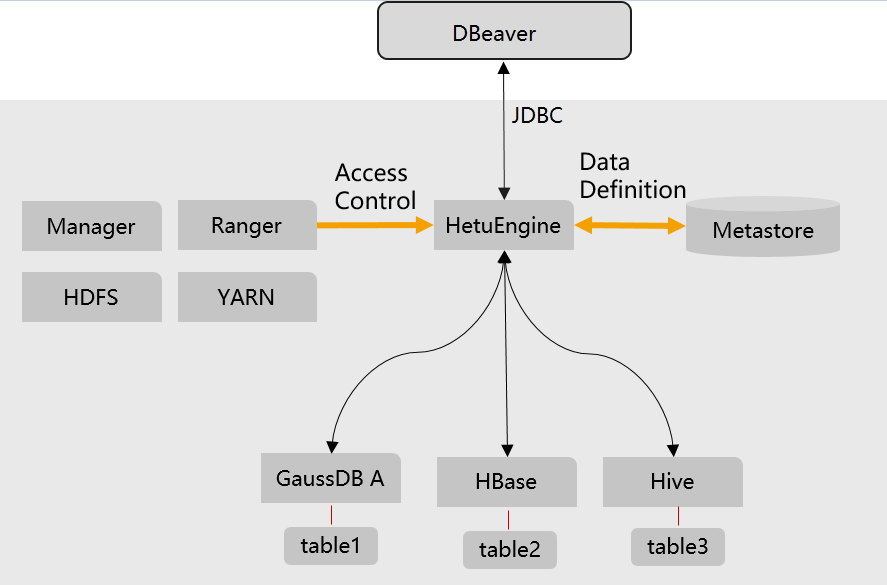
Figure 1: Solution Design, DBeaver accesses HetuEngine through JDBC, and HetuEngine queries GaussDB A, HBase, and Hive.
Prerequisites
- An MRS cluster with the HetuEngine component is created.
- Kerberos authentication is disabled.
- An EIP (elastic public IP address).
- Secure communications are enabled.
- A Windows ECS is in the same network/VPC as the MRS cluster.
- Private network communication between the MRS cluster and the ECS is enabled through a security group.
Creating the hetu_admin and hetu_user Users
Creating a HetuEngine Administrator
- Log in to MRS Manager.
- Choose System -> Permission -> User and click Create.
- Enter a username, for example,
hetu_admin. - Set User Type to
Human-machine. - Set Password and Confirm Password.
- In the User Group area, click Add to add the
hive,hetuadmin,hadoop,hetuuser, andyarnviewgroupuser groups for the user. - In the Primary Group drop-down list, select
hiveas the primary group. - In the Role area, click Add to assign the
default,System_administrator, and other desired tenant roles to the user. - Click OK.
Creating a Common HetuEngine User
- Log in to MRS Manager.
- Choose System -> Permission -> User and click Create.
- Enter a username, for example,
hetu_user. - Set User Type to
Human-machine. - Set Password and Confirm Password.
- In the User Group area, click Add to add the
hetuuseruser group for the user. - In the Role area, click Add to assign the
defaultor other desired tenant roles to the user. - Click OK.
Creating a HetuEngine Compute Instance
You must use a leaf tenant when you create a HetuEngine compute instance because YARN jobs can only be submitted to the queues of a leaf tenant. To avoid uncertainties caused by resource competition, you are advised to create independent resource pools for tenants used by HetuEngine.
- Log in to MRS Manager as user
hetu_userand choose Cluster -> Services -> HetuEngine. - In the Basic Information area on the Dashboard page, click the link next to HSConsole WebUI. The HSConsole page is displayed.
- Click Compute Instance, then Create Configuration, and configure the compute instance parameters:
i. Set parameters in the Basic Configuration area.
ii. Set parameters in the Coordinator Container Resource Configuration area.
iii. Set parameters in the Worker Container Resource Configuration area.
iv. Set parameters in the Advanced Configuration area.
v. Configure the Custom Configuration parameters.
Obtaining the JDBC JAR Package and Configuring Host Mapping
Obtaining the JDBC JAR package
Download the HetuEngine client to obtain the JDBC JAR package.
- Log in to MRS Manager.
- Choose Cluster -> Services -> HetuEngine -> Dashboard.
- In the upper right corner of the page, choose More -> Download Client and download the Complete Client to the local PC as prompted.
- Decompress the HetuEngine client package MRS_Cluster ID_ HetuEngine_Client.tar to obtain the JDBC file and save it to a local directory, for example, D:\test.
How to obtain the JDBC file: Decompress the package in the MRS_Cluster ID_HetuEngine_ClientConfig\HetuEngine directory, in the subdirectory matching the CPU architecture (arm or x86), to obtain the hetu-jdbc-*.jar file.
Adding the host mapping
Add the mapping of the host where the instance is located in the HSFabric or HSBroker mode to the local hosts file. The format is Host IP address Host name.
Example:
192.168.42.90 server-2110081635-0001
The local hosts file in a Windows environment is stored in, for example, C:\Windows\System32\drivers\etc.
Configuring the MRS HetuEngine
-
Check that all roles are correctly assigned to
hetu_user. The default role ishive.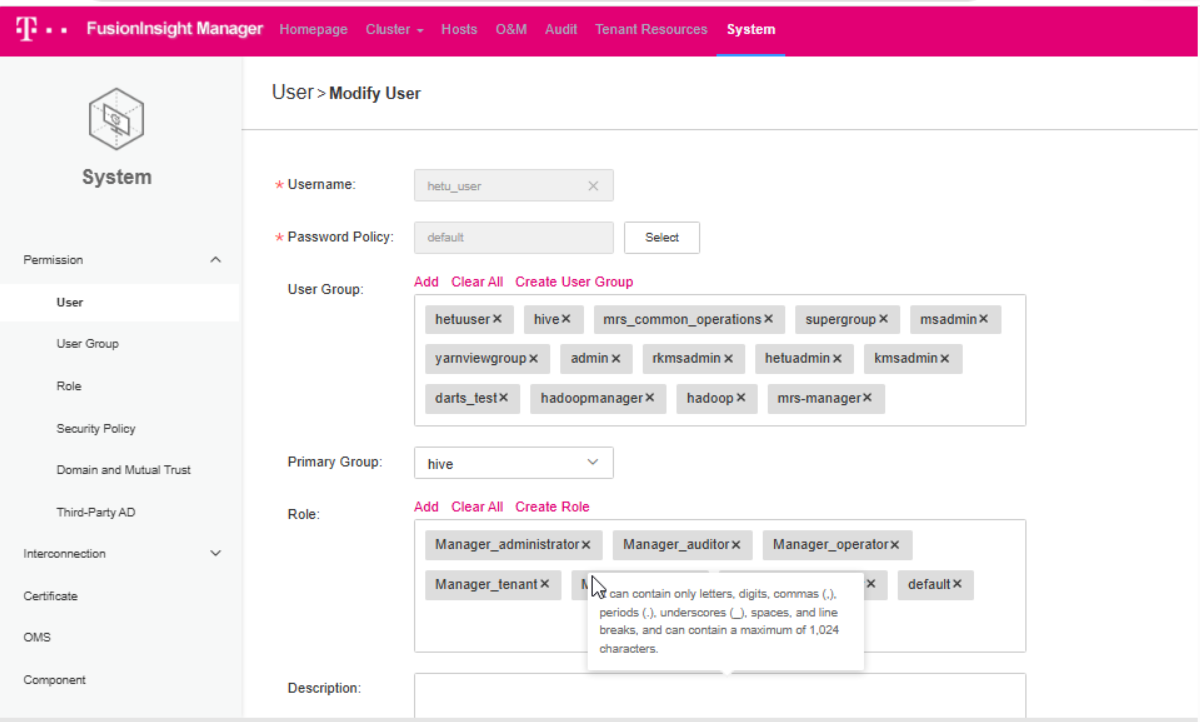 Figure 2: User hetu_user with its user groups, primary group, and roles in FusionInsight Manager.
-
In MRS Manager, go to HetuEngine -> Configuration.
-
Set
tenant.strictmodetofalse.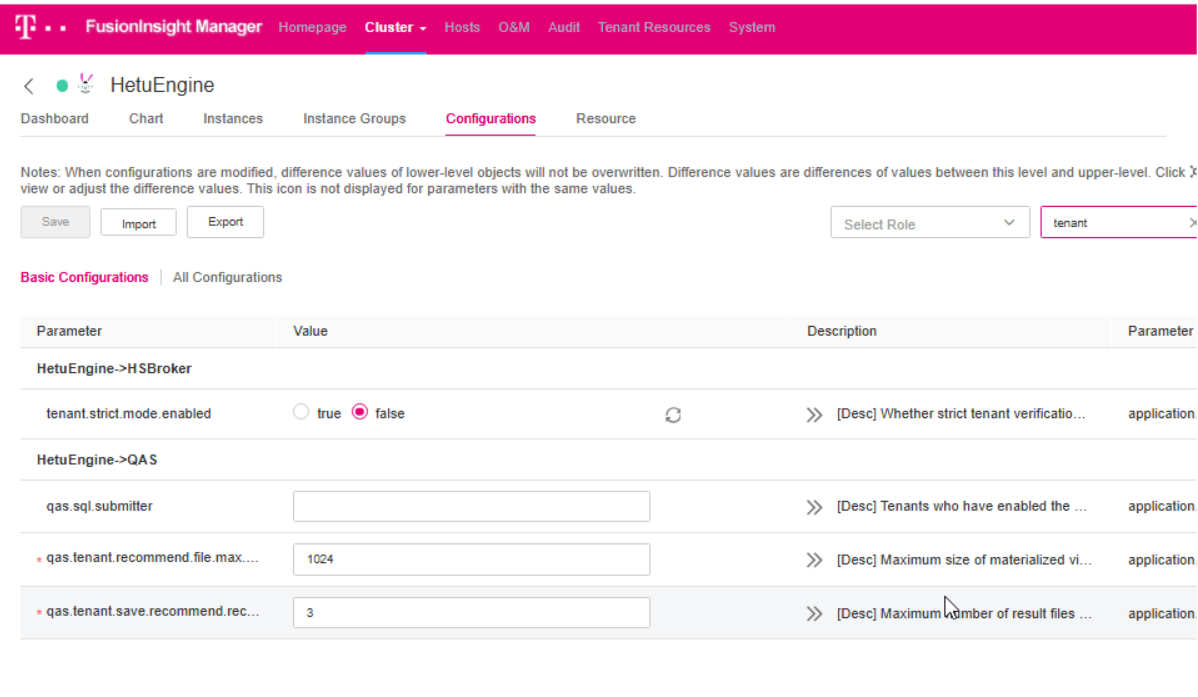 Figure 3: HetuEngine configuration with the tenant strict mode parameter set to false
-
Restart all MRS cluster services in MRS Manager.
Creating the HetuEngine Database Connection
Installing DBeaver
Download DBeaver (Community Edition) from https://dbeaver.io/download/ and install it on Windows.
Configuring the driver
- Open DBeaver, choose Database -> New Database Connection, search for PrestoSQL in ALL, and open PrestoSQL.
- Click Edit Driver Settings and set the parameters by referring to the following table.
Please use HSBroker by default. If HSBroker cannot be used for accessing HetuEngine across network segments, use HSFabric instead.
Table 1: Driver settings
| Parameter | Value |
|---|---|
| Class Name | io.prestosql.jdbc.PrestoDriver |
| URL Template | See the HSFabric and HSBroker templates below. |
Accessing HetuEngine with HSFabric
jdbc:presto://<HSFabricIP1:port1>,<HSFabricIP2:port2>,<HSFabricIP3:port3>/hive/default?serviceDiscoveryMode=hsfabric
Example:
jdbc:presto://192.168.42.90:29902,192.168.42.91:29902,192.168.42.92:29902/hive/default?serviceDiscoveryMode=hsfabric
Accessing HetuEngine with HSBroker
jdbc:presto://<HSBrokerIP1:port1>,<HSBrokerIP2:port2>,<HSBrokerIP3:port3>/hive/default?serviceDiscoveryMode=hsbroker
Example:
jdbc:presto://192.168.42.90:29861,192.168.42.91:29861,192.168.42.92:29861/hive/default?serviceDiscoveryMode=hsbroker
To obtain the IP addresses and port numbers of the HSFabric and HSBroker nodes, perform the following operations:
-
Log in to MRS Manager.
-
Choose Cluster -> Services -> HetuEngine. Click the Instance tab to obtain the service IP addresses of all HSFabric or HSBroker instances. You can select one or more normal instances for connection.
-
To obtain the port numbers, choose Cluster -> Services -> HetuEngine. Click Configurations, then All Configurations.
- Search for
gateway.portto obtain the HSFabric port number. The default port number is29902in security mode and29903in normal mode. - Search for
server.portto obtain the HSBroker port number. The default port number is29860in security mode and29861in normal mode.
- Search for
If the connection fails, disable the proxy and try again.
- Click Add File and upload the JDBC driver package obtained in Obtaining the JDBC JAR Package and Configuring Host Mapping.
- Click Find Class. The driver class is automatically obtained. Click OK to complete the driver setting.
If io.prestosql:presto-jdbc:RELEASE exists in Libraries, delete it before clicking Find Class.
Creating the connection
-
Normal mode (clusters with Kerberos authentication disabled): on the page for creating a connection, configure the parameters on the Driver properties tab. Set
userto the user created in Creating the hetu_admin and hetu_user Users.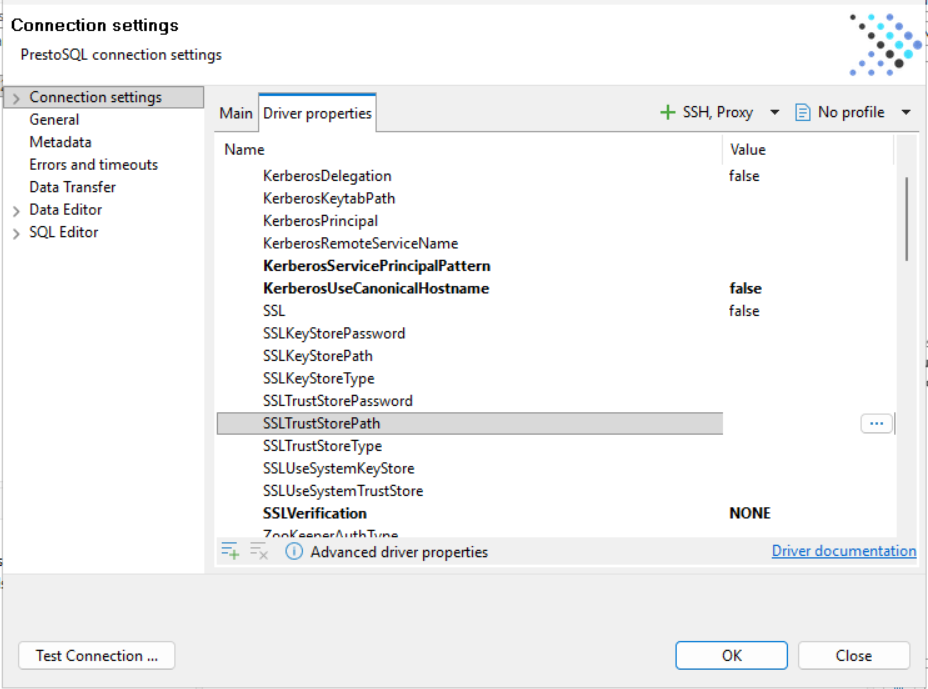 Figure 4: DBeaver driver properties tab showing the Kerberos and SSL properties
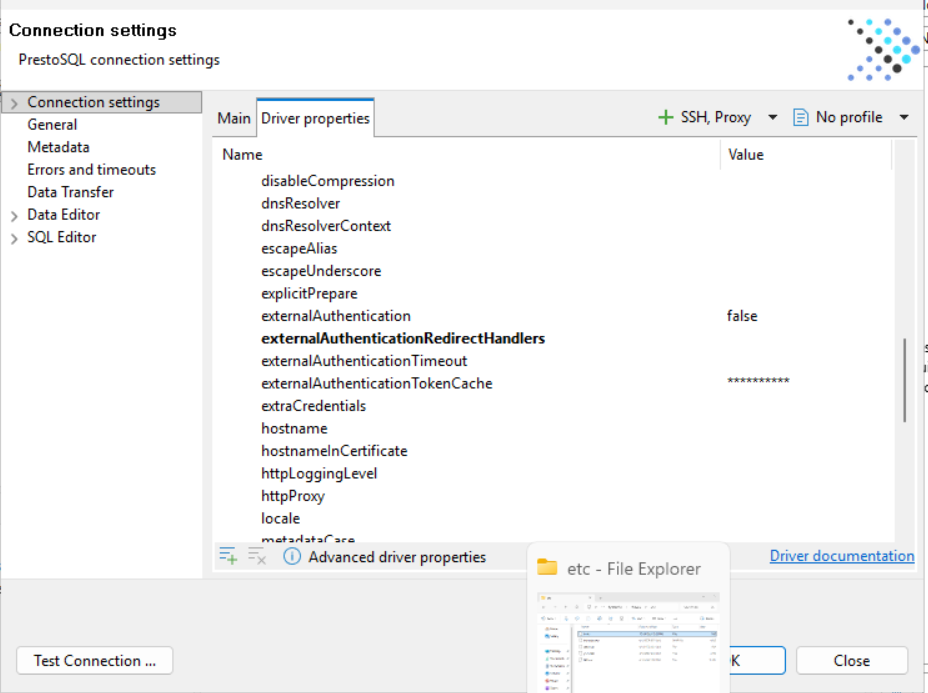 **Figure 5:**DBeaver driver properties tab showing the authentication, hostname, and proxy properties
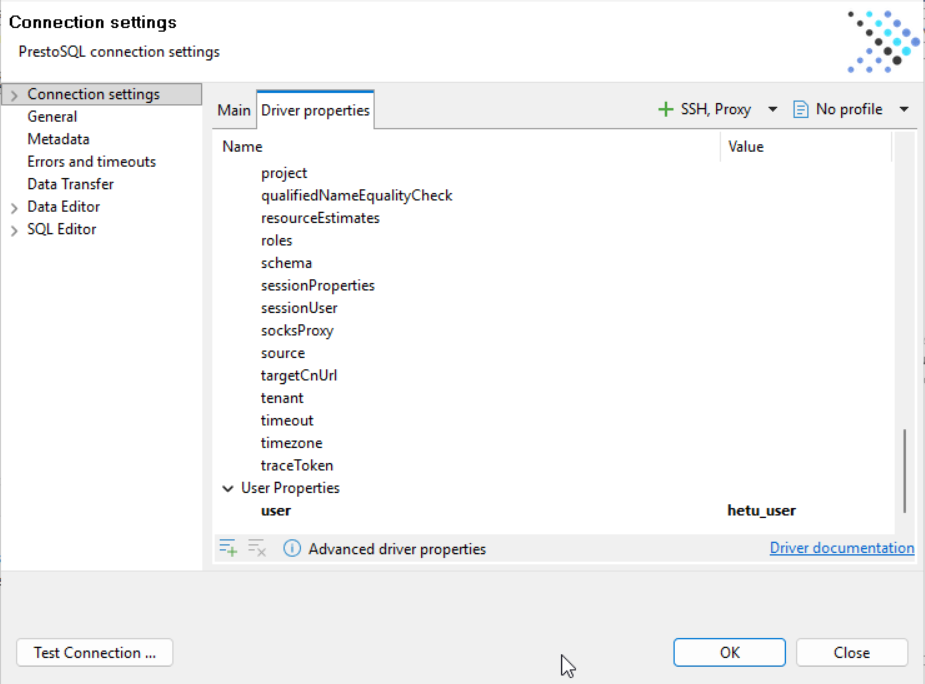 Figure 6: DBeaver driver properties tab with the user property set to hetu_user
-
Click Test Connection. After the connection is successful, click OK, then Finish. You can click Connection details (name, type, ...) to change the connection name.
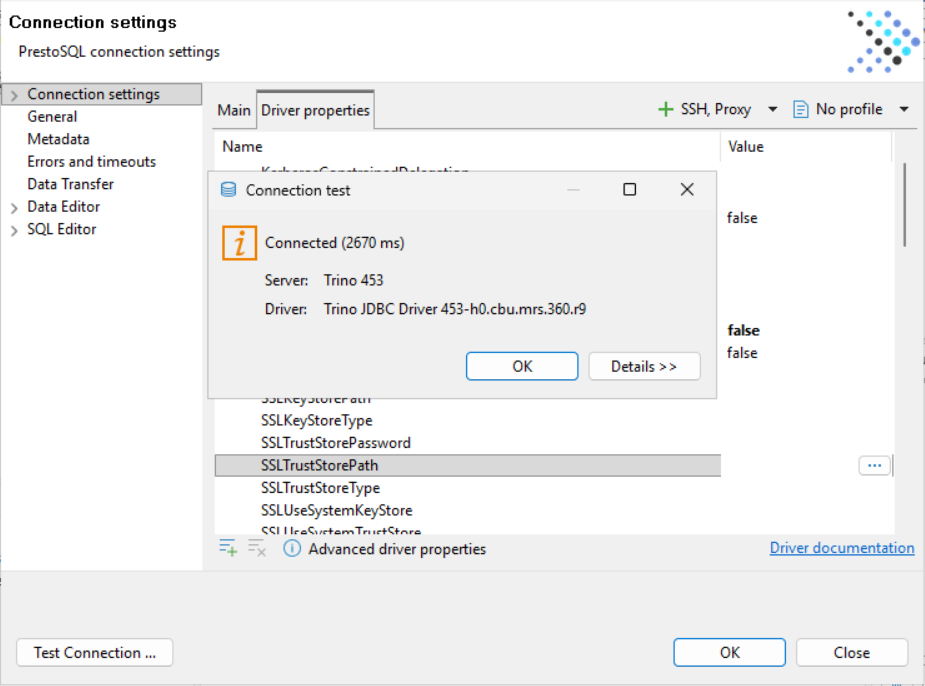 Figure 7: DBeaver connection test dialog reporting a successful connection
After completing this guide, you will have prepared an MRS cluster for HetuEngine access, created the required users and a compute instance, and configured DBeaver with the HetuEngine JDBC driver. You can then execute SQL statements against HetuEngine directly from DBeaver.