Restoring Backup Data
Ransomware attacks are developing rapidly these days. There are no tools can kill them absolutely. So once a system was attacked by ransomware, restoring the victim system from backups in a timely manner is the best remedies to minimize losses. After enabling ransomware backup, you can use T Cloud Public CBR to quickly restore services, keeping your services stable.
Restoring Backup Data
Before using the backup data to restore the service data of a server, check whether the backup is available. If the backup is available, restore the key service system first.
-
In the upper left corner of the page, select a region, click
 , and choose Security > HSS.
 -
In the navigation tree on the left, choose .
-
Click the Protected Servers tab.
-
In the Operation column of the target server, click More > Restore Data.
-
In the displayed Backups page, select the backup data you want to restore.
-
In the Operation column of the target backup data, click Restore Data.
-
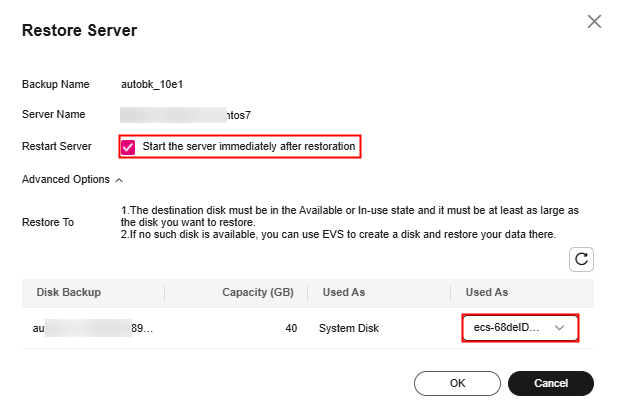
In the displayed dialog page, confirm the server information and configure parameters such as the disk for storing data.
- Restart Server: If this option is selected, you agree to restart the server after data restoration.
- Advanced Options: Click
 to expand it. Select the location where the backup data is restored.
Figure 1 Restoring a server
-
Click OK.
After the backup restoration is complete, check whether the data generated before the backup exists. If yes, the restoration is successful.
Related Operations
You are advised to identify system vulnerabilities based on the ransomware attack path and fix system vulnerabilities.